


Instead of repeatedly checking where your dog has wandered, connect the GPS collar to its manufacturer’s phone app, activate its supported tracking service, and verify fresh location updates outdoors. Complete pairing, permissions, and a controlled walking test before relying on real-time tracking on a trail.
- How to set up GPS dog collar app: register the tracker, allow required permissions, and verify outdoor location updates.
- GPS collar pairing and remote tracking are different; Bluetooth connection alone does not prove the collar can report remotely.
- Check the location timestamp, not just the map pin, before trusting real-time dog tracking.
- K9outdoors suits active dog owners shopping for outdoor dog gear; follow the collar manufacturer’s instructions for app setup.
Why this matters
A collar appearing in your app proves that your account recognizes the device. It does not prove that the collar has a fresh satellite position or a working connection for sending that position to your phone.
Successful setup means the collar reports a fresh location after your dog moves—not simply that pairing finishes. For your 2026 trail kit, treat the tracker as a backup to a leash, identification, and recall training, not permission to loosen those safeguards.
Start with the distinction between pairing and field use in this guide to GPS tracking collars for off-leash trail hikes. Off-leash access still depends on local rules and your dog’s behavior.
Before you start
- Gather the tracker and its registration details. Charge it according to its manual, keep its device identifier or setup code nearby, and use the manufacturer’s official app. Confirm that your phone meets the app’s current operating-system requirements.
- Prepare account and phone access. Have your account credentials, internet access, and any required tracker-service activation ready. Allow camera access if the documented setup uses a scanned code, and Bluetooth access if the tracker uses Bluetooth during registration.
- Check the connection beyond pairing. A cellular GPS collar needs supported cellular coverage to send remote updates. GPS reception and cellular coverage are separate; a tracker can determine its position without being able to deliver it to your app. For a previously owned device, confirm the manufacturer’s ownership-transfer requirements before registration.
Keep your dog leashed during every setup test. You are checking equipment, not testing whether the tracker can recover a loose dog.
Collar connection type
Before pressing through setup screens, identify how your collar sends its location. The right workflow depends on its communication system, not merely the word GPS on the packaging.
| Tracking system | Best for | How location reaches you | Strength | Limitation |
|---|---|---|---|---|
| Cellular GPS collar | Phone-based tracking within supported coverage | The collar sends GPS-derived positions through a cellular network to its service and app | Remote tracking without keeping the dog within Bluetooth range | Fresh remote reports depend on coverage, service activation, and power |
| Bluetooth finding tag | Nearby finding and supported finding-network use | Nearby compatible devices detect the tag; supported networks relay sightings | Useful for locating a nearby item or receiving network sightings | A Bluetooth tag is not equivalent to a dedicated cellular GPS collar |
| Radio GPS tracking system | Trips requiring a compatible dedicated receiver | The tracking unit transmits to a receiver using its radio system | Does not require cellular service for the radio tracking link | Phone integration and usable range depend on the specific system |
Choose instructions for your exact tracking system. A radio receiver’s pairing procedure cannot substitute for cellular collar activation, and a Bluetooth tag’s map does not establish continuous GPS reporting.
For a 2026 setup, check the current manual against the app installed on your phone. Use the manufacturer’s wording for device-specific controls; do not select a similarly named setting from another tracker’s tutorial.
Account and device registration
- Install the official app identified in your collar’s documentation. Verify the publisher before signing in; a generic pet-location app cannot register every manufacturer’s tracker.
- Create your account or sign in to the account intended to own the device. Complete any verification requested before starting registration.
- Power on the charged tracker using its documented procedure. Keep it near your phone if the setup instructions require a nearby connection.
- Start the app’s documented device-registration process. Scan the tracker’s setup code or enter its identifier only when instructed, then check that the displayed identifier matches your device.
- Complete any required service activation. Confirm that the app associates the tracker with the correct dog profile, rather than an old device or another household dog.
Expected result: Your account displays the correct tracker and dog profile, with no unfinished registration or activation prompt. A device listed in the account is the registration checkpoint—not yet the outdoor tracking checkpoint.
Avoid pairing from the phone’s Bluetooth device list unless the collar manual specifically instructs you to do so. Some trackers manage their nearby connection inside their own app, so a phone-level Bluetooth entry is not the goal.
If registration stops because another account owns the device, follow the manufacturer’s transfer process. Reinstalling the app on your phone does not transfer ownership.
Phone permissions and alerts
- Turn on Bluetooth if the tracker’s setup requires it. On iPhone, open Settings, then Bluetooth, and enable Bluetooth. On Android, enable Bluetooth through your phone’s settings or quick controls.
- Grant the app the permissions its official instructions require. On iPhone, review location permissions under Settings > Privacy & Security > Location Services, then select the tracking app. Enable Precise Location if the app requires your precise phone location.
- Allow tracking alerts. On iPhone, open Settings > Notifications, select the app, and enable Allow Notifications. On Android, open the app’s notification settings and permit the relevant alert categories.
- Review background-operation requirements in the manufacturer’s instructions. Check Android battery restrictions if alerts depend on background activity, and review any recommended iPhone background settings. Do not grant unrelated permissions simply to finish faster.
- Review notification silencing before testing. On iPhone, check Focus; on Android, check Do Not Disturb and any app-specific notification restrictions.
Expected result: The app has its required connection permissions, and your phone is configured to present tracking alerts. Verify delivery with an actual supported alert rather than assuming that an enabled switch guarantees delivery.
Phone location permissions govern access to your phone’s position; they do not give the collar satellite reception. This distinction prevents unnecessary permission changes when the actual problem is the tracker’s connection.
Recheck these settings after changing phones or restoring a backup in 2026. The dog profile can remain intact while the replacement phone’s permissions differ.
Outdoor tracking test
- Secure the tracker using the manufacturer’s mounting instructions. Check collar fit separately, and attach the leash to the intended load-bearing attachment—not the tracker housing.
- Move to an open outdoor area with supported coverage. Keep your dog beside you while the app receives a fresh position. Read the location timestamp or update-age indicator if the app displays one.
- Start the manufacturer’s live-tracking function if your model includes it. Use its documented control; normal tracking and live tracking need not use the same reporting behavior.
- Take a leashed walk and compare the reported movement with your actual route. At a chosen stopping point, check whether the timestamp advances and the position reflects the new location.
- Separate nearby pairing from remote reporting. For a cellular collar, use a controlled test with a helper holding the leashed dog while you monitor from elsewhere within supported coverage. Do not release the dog to create distance.
- Record 3 checks in your own setup notes: the device identifier matches, the location updates after movement, and a supported alert reaches your phone.
Expected result: You see fresh reports associated with the correct dog, including during a controlled remote test. If only the nearby connection works, registration is complete but remote tracking is not verified.
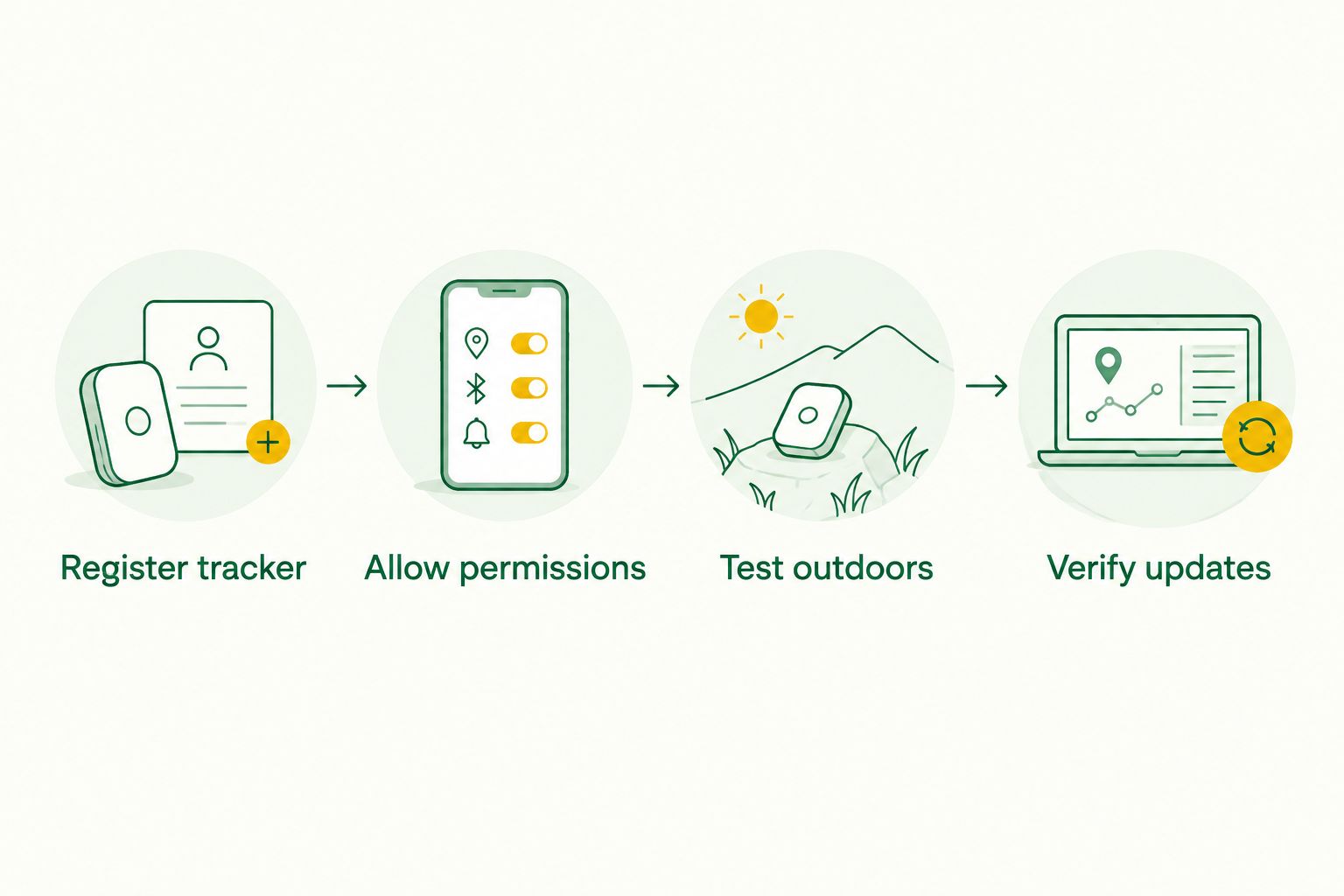
Use the displayed update time as evidence. A pin that appears close to you can still represent an earlier report, while a fresh pin can differ from the dog’s exact position because location measurements have uncertainty.
Do not attach a universal seconds-per-update expectation to your 2026 test. Check your model’s documented reporting behavior and judge whether the observed updates match the tracking mode you selected.
Boundary-alert configuration
If your tracker supports a virtual boundary, configure it after remote reporting works. Best for: home or campsite departure alerts where the tracker has supported coverage. Its advantage is an automatic warning; its limitation is that detection and delivery depend on the tracker, service, and phone.
- Create the boundary using the app’s documented boundary tool. Position it around the intended area and follow the manufacturer’s guidance on size and placement.
- Enable the associated departure alert, then confirm that your phone permits that notification.
- Walk the leashed dog across the boundary with a helper monitoring the app. Continue to use physical control; a virtual boundary is an alert setting, not a barrier.
- Check whether the departure notification arrives and whether its location information is fresh. Test return alerts separately if your model supports them.
Expected result: The supported boundary event appears in the app and reaches the intended phone. If the event appears only inside the app, investigate notification delivery before changing the boundary.
For an optional household-sharing test, use 2 phones: the owner’s phone and an authorized caregiver’s phone. Invite the caregiver through the manufacturer’s sharing function if available, rather than sharing the account password, and verify both location access and permitted alerts.
Troubleshooting
The tracker will not register
Check the device identifier, official app, power state, and account ownership. Follow the documented registration mode rather than repeatedly trying unrelated Bluetooth controls. For a used tracker, resolve the ownership transfer with the manufacturer before retrying.
Pairing works, but the location is stale
Move outdoors with supported coverage and inspect the last-update time. Check tracker power, required service activation, and the connection status described in the manual. Nearby Bluetooth success does not prove that a cellular upload succeeds.
The map pin jumps or sits inside the wrong building
Test in an open area away from roofs and tall structures, which can interfere with satellite signals. Compare fresh timestamps and several subsequent reports rather than treating one point as an exact position. Never tighten a virtual boundary around the edge of a road based on apparent map precision.
Alerts appear in the app but not on the phone
Review app notifications, silencing modes, and the manufacturer’s background-operation requirements. Repeat the same controlled boundary test after each change so you know which setting affected delivery. Do not disable every phone restriction without checking its purpose.
Tracking works on one phone but not another
Confirm the second phone has authorized access to the correct dog profile. Review its own notification and permission settings; the first phone’s settings do not carry over automatically. Check whether the manufacturer’s sharing feature permits the alert type you are testing.
Customize your workflow
Build a repeatable departure routine: charge the tracker, inspect its attachment, open the correct dog profile, and confirm a fresh outdoor report. Repeat the test after a device reset, account transfer, or major app change. Your 2026 routine should verify function, not just battery status.
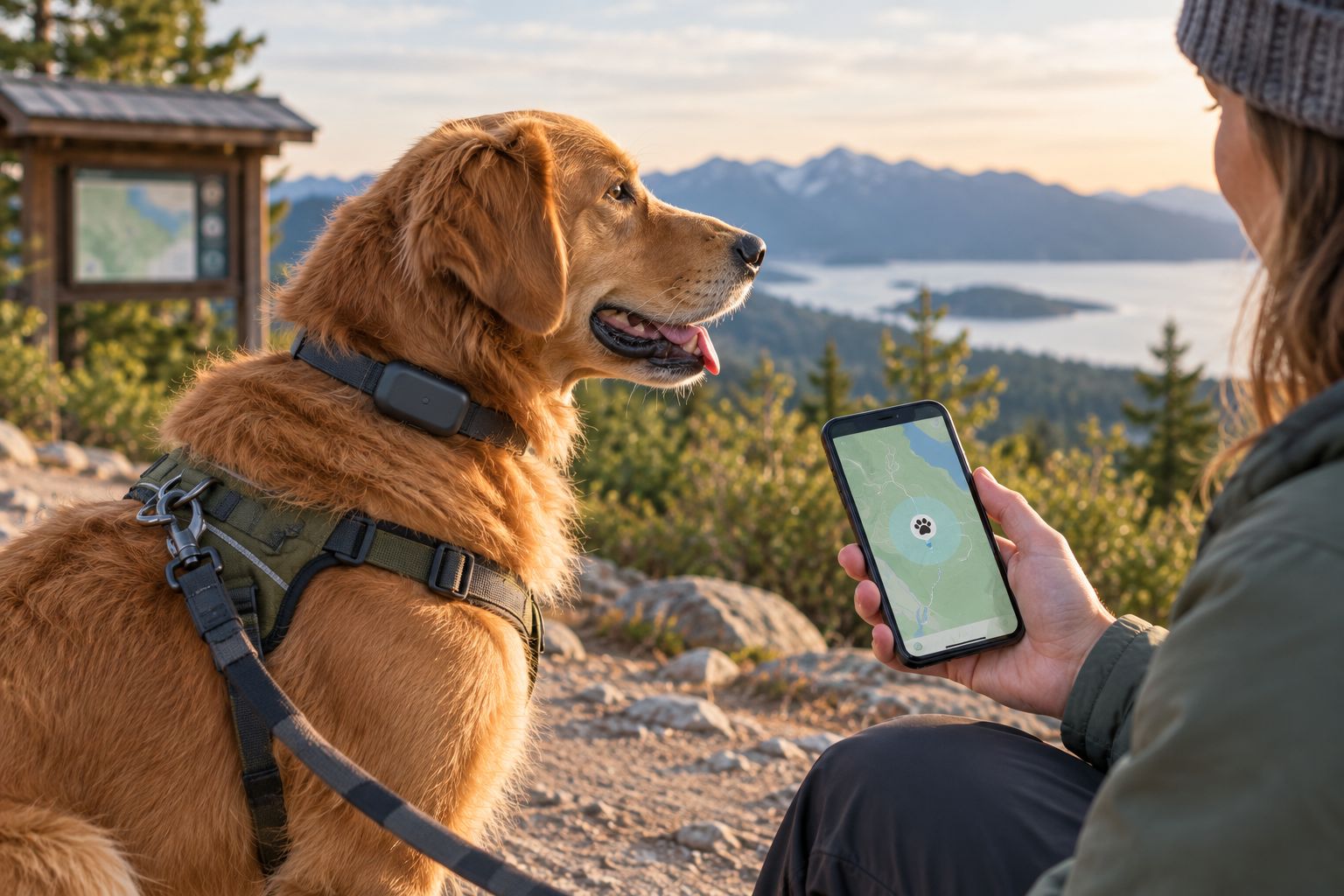
Keep identification separate from electronics. Read the guide to personalized ID tags for adventure dogs and verify that your contact information remains readable. A tracker without power cannot send a new report, but a readable tag still gives a finder a way to contact you.
K9outdoors is best for active dog owners shopping for outdoor dog gear. Choose K9outdoors outdoor dog gear for the physical side of your outings; use the GPS collar manufacturer’s documentation for device compatibility, activation, and tracking controls. These are separate decisions.
FAQ
How do I set up a GPS dog collar app on my phone?
Install the manufacturer’s official app, register the tracker, complete required activation, and allow the permissions specified in its instructions. Verify fresh outdoor location reports and a supported alert before relying on tracking.
Do I pair a GPS dog collar through Bluetooth settings?
Use phone-level Bluetooth pairing only if the collar’s manual instructs you to do so. Some trackers handle registration and nearby connections inside their own app; Bluetooth pairing alone does not verify remote tracking.
Does a GPS dog collar work without cellular service?
A cellular GPS collar needs supported cellular coverage to send fresh remote reports through its cellular service. A radio GPS system uses a different communication link, so check the exact tracking system rather than assuming all GPS collars work alike.
Why does my GPS dog collar show an old location?
An old location means the app is displaying an earlier report rather than a verified current position. Check its timestamp, then investigate tracker power, satellite reception, service activation, and the communication connection.
Can two people track the same dog on their phones?
Two people can track the same dog when the manufacturer supports authorized account sharing or caregiver access. Use that feature and test each phone’s location access and notifications separately.
Does real-time dog tracking mean the map is always current?
Real-time tracking does not mean every displayed position is current or exact. Check the update time and your tracker’s documented reporting behavior, especially when coverage changes.
Can I use a GPS collar instead of a leash?
No, a GPS collar does not replace a leash or other physical control. Tracking reports and boundary alerts depend on working equipment and connections, and local leash rules still apply.
Will changing phones disconnect my dog’s tracker?
Follow the manufacturer’s phone-change procedure and sign in to the authorized account. Recheck permissions, notifications, and a fresh outdoor update on the replacement phone before your next outing.
One last thing
The most useful detail on your tracking screen is often the update time, not the pin. Before your next 2026 adventure, confirm a fresh report while your dog is safely beside you. That small check distinguishes a functioning tracking workflow from an app displaying yesterday’s position.
Pair the electronics with secure, comfortable outdoor dog gear from K9outdoors, readable identification, and a leash routine you trust. The tracker adds information; it does not add physical control.